 Fobb Security
Get your passwords on your computer — approved on your phone. Press a shortcut on any login page, approve on your phone, and the login appears on your computer, ready to copy. No vault is ever stored on your computer.
Choose your computer: Mac · Windows
Requires the Fobb Security app on your phone and Fobb Pro. Companion devices are part of Fobb Pro, and new subscribers get the first month free.
On a Mac
Get your passwords on your Mac — approved on your phone. Press a shortcut on any login page, approve with Face ID or your fingerprint on your phone, and the login appears on your Mac, ready to copy.
Install
- Open Fobb-Security.dmg and drag Fobb Security into Applications.
- Open Fobb Security from Applications. macOS asks whether to open an app downloaded from the internet — choose Open.
- Fobb lives in the menu bar (top right), not in the Dock.
Connect it to your phone
- On your phone: Settings → Paired devices → Add a device.
- Scan the QR code on your Mac (or type the 8-character code).
- Check that the 6-digit number is the same on both screens, then confirm.
Use it
- On a login page, press ⌃⌥F (Control–Option–F). You can change the shortcut in Fobb's Settings.
- Approve the request on your phone. The username, password and 2FA code appear on your Mac to copy.
- The first time you use it in each browser, macOS asks to let Fobb read the browser's current page address (so it can find the right login). Choose OK. Fobb never reads anything else.
Updates
Fobb checks for updates on its own. When one is ready, the menu-bar menu shows Restart to update. You can also choose Check for updates at any time.
Uninstall
Choose Quit Fobb from the menu-bar icon, then drag Fobb Security from Applications to the Trash. To disconnect it from your phone, remove it under Settings → Paired devices.
On Windows
Get your passwords on your PC — approved on your phone. Press a shortcut on any login page, approve with your fingerprint or face on your phone, and the login appears on your PC, ready to copy. No vault is ever stored on your computer.
Windows will show a warning — here's why
Fobb for Windows isn't code-signed yet, so Windows doesn't recognise us as a publisher and warns you before you open it. This is expected. To continue:
- If your browser warns when downloading (for example Microsoft Edge: "isn't commonly downloaded"), click … next to the download → Keep → Show more → Keep anyway.
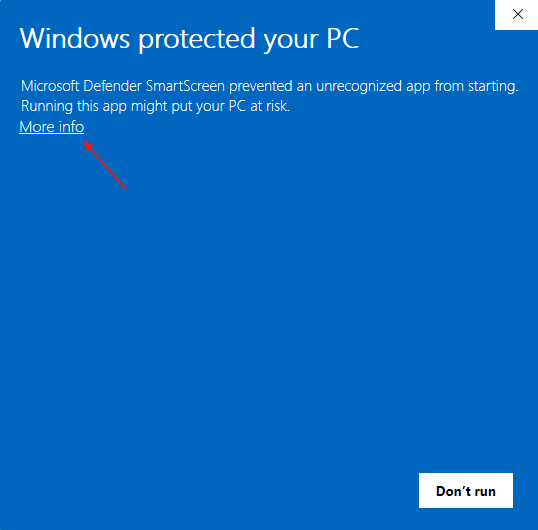
- When you open the installer, Windows shows a blue "Windows protected your
PC" box with only a Don't run button. Don't click it. Instead, click the small
More info link under the message:
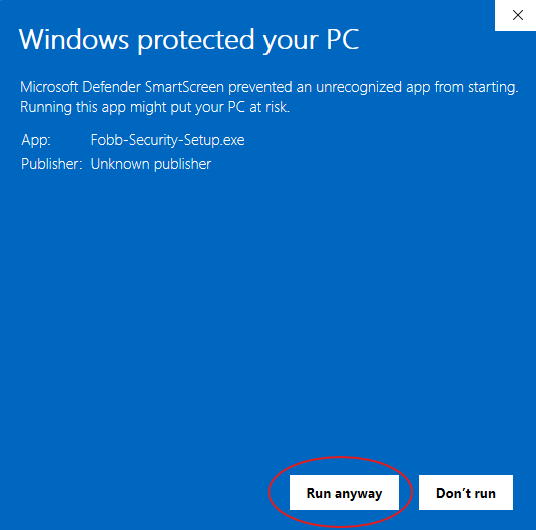
- The box now shows App: Fobb-Security-Setup.exe and Publisher: Unknown
publisher ("unknown" only because the app isn't signed yet). Check that the app name is
Fobb-Security-Setup.exe, then click Run anyway:
If your PC has Smart App Control turned on, Windows blocks apps that aren't signed and doesn't offer "Run anyway". A signed version is on its way — until then, write to us at support@fobbsecurity.com.
Make sure the file really came from us (optional)
Because the app isn't signed yet, Windows can't confirm who made it. You can check it yourself: every file has a unique fingerprint, and if even one byte of the file is changed, the fingerprint changes completely. If the fingerprint of the file you downloaded matches the one below, you have exactly the installer we published, complete and not tampered with on the way to you.
- Open PowerShell (search for it in the Start menu).
- Paste this and press Enter:
Get-FileHash "$env:USERPROFILE\Downloads\Fobb-Security-Setup.exe" - Compare the long code shown under Hash with ours. They must be identical:
8FA91980F48BE22ED6BF723C5E6DC9369E9D410F5A800F1BE2F26F91156371DD
If they don't match, don't run the file. Delete it and write to us at support@fobbsecurity.com.
Install
- Run Fobb-Security-Setup.exe. It installs for your Windows account only, so no administrator password is needed.
- Fobb starts and opens its pairing window. Afterwards it lives in the notification area next to the clock. If you don't see it, click the ^ arrow.
Connect it to your phone
- On your phone: Settings → Paired devices → Add a device.
- Scan the QR code on your PC (or type the 8-character code).
- Check that the 6-digit number is the same on both screens, then confirm.
Use it
- On a login page, press Ctrl+Alt+F. If another app already uses that shortcut, Fobb uses Ctrl+Alt+\ instead. You can change it in Fobb's Settings.
- Approve the request on your phone. The username, password and 2FA code appear on your PC to copy.
- Fobb reads only the address of the browser page you're on, to find the right login. It never reads anything else on your screen.
Updates
Fobb checks for updates on its own. When one is ready, right-click the Fobb icon: the menu shows Restart to update. You can also choose Check for updates there, or in Fobb's Settings → Updates.
Uninstall
Right-click the Fobb icon in the notification area → Quit Fobb. Then open Windows Settings → Apps → Installed apps, find Fobb Security, and choose Uninstall. To disconnect it from your phone, remove it under Settings → Paired devices on your phone.
Privacy
Your vault never leaves your phone. Each login you approve is sent end-to-end encrypted to your computer and is not stored there.
Questions: support@fobbsecurity.com · Privacy Policy